How to Grade ESL Essays with AI
Last updated: 2026-07-06
If you're evaluating AI essay grading for teachers as a way to cut down marking time without giving up control of the final grade, this article walks through the whole workflow in Writing, no kidding — from opening a submission to finalizing a grade a student actually sees. Nothing here replaces your judgment: the AI proposes, you decide.
Opening a submission
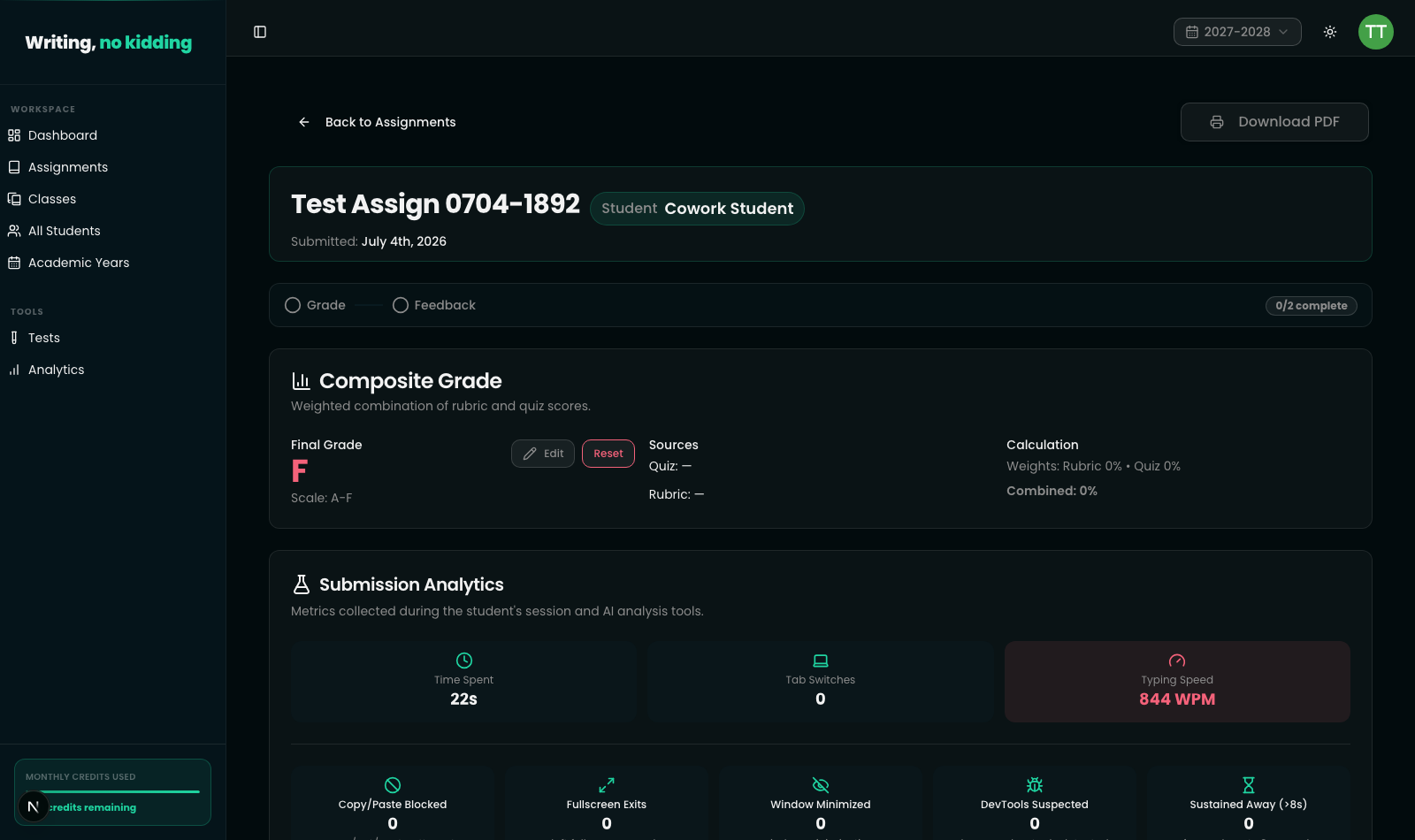
Every submission a student turns in lands on its own review page (Teacher → Submissions → [student's submission]). The header shows the assignment title, the student's name, and the date it was submitted. Below that sits a progress tracker — Rubric, Quiz, Grade, Feedback — that fills in as you complete each part of the review, so you always know how far along you are (e.g. "0/2 complete" means neither the grade nor the feedback has been entered yet).
If the submission includes a rubric-graded writing task, you'll see a Rubric Evaluation card. If it includes quiz-style tasks, you'll see those broken out separately. If both are present, Writing, no kidding combines them into a single Composite Grade.
Running AI analysis
For writing tasks, a Run AI Analysis button in the Finalize Review section triggers the AI Correction Tool and, if a rubric or grading standard is attached, the rubric-based Writing Scorer. This is how you grade ESL essays with AI: the model reads the student's text and returns inline corrections, a feedback summary, and — if a rubric applies — a level selection and rationale for each criterion. Nothing happens automatically before this point; the analysis only runs when you click the button.
The result is not a grade in itself. It's a structured first pass you're expected to read, adjust, and confirm — the same principle described in the AI Instructions for Use page: AI output can be wrong, inconsistent, or subtly off-target, and you apply your own professional judgment before it reaches a student.
The Composite Grade panel
When an assignment mixes rubric-scored writing with quiz questions, the Composite Grade panel shows a single Final Grade on your chosen scale (0-100, 0-10, or A-F), built from a weighted combination of the Rubric score and the Quiz score. You can see exactly which sources fed into it and their relative weights. An Edit button lets you override the computed grade directly; Reset clears your manual override and recomputes the composite from the current rubric and quiz scores. Until you save, this is a suggestion — nothing is sent to the student.
This is what makes automated essay scoring here different from a black-box score: every component is visible and adjustable, and the final number in front of the student is always one you confirmed.
Submission Analytics
Alongside grading, a Submission Analytics panel reports on the student's working session: Time Spent, Tab Switches, Typing Speed (WPM), Copy/Paste Blocked attempts, Fullscreen Exits, Window Minimized count, DevTools Suspected events, and Sustained Away periods (over 8 seconds). These are behavioral signals, not proof of misconduct — a high tab-switch count or fast typing speed is a prompt to look closer, not a verdict.
Finalizing the grade
Once you're satisfied, the Finalize Review panel is where the grade becomes real. Type your own grade, or explicitly click "Use suggested" to adopt the AI's proposed number — either way it's a deliberate action on your part. Add your overall feedback, then click Submit Review. Only at that point does the student see a grade or feedback.
Related reading
- How AI Correction Feedback Works — what the correction tool actually checks
- How to Review and Override AI Grades — the review/finalize step in detail
- How to Use Grading Standards: CEFR and Cambridge — grading against a named framework instead of a custom rubric
Ready to try this in your own classroom?
Related articles
How AI Correction Feedback Works
What the AI Correction Tool actually checks — grammar, vocabulary, structure, and register — and how it presents strengths and next steps.
How to Review and Override AI Grades
AI proposes a grade — you always have the final say. How to review, adjust, and finalize scores before publishing to students.
How to Use Grading Standards: CEFR and Cambridge
Grade against CEFR (A1-C2) or Cambridge B2 First Writing band descriptors instead of a generic scale, so AI feedback matches a real standard.