How to Create Your First Writing Assignment
Last updated: 2026-07-06
If you want to create a writing assignment online for your ESL class, the New Assignment page is where it happens — one form that handles the assignment's setup (title, due date, grading, rubric) and the actual task content (writing prompts, quizzes, and other exercise types) in a single flow.
This guide walks through building your first assignment from scratch. It also works as an ESL assignment creator for quizzes and other exercise types, since a single assignment can mix writing tasks with quizzes, gapped text, matching, transformation, or reading comprehension tasks.
Before you start
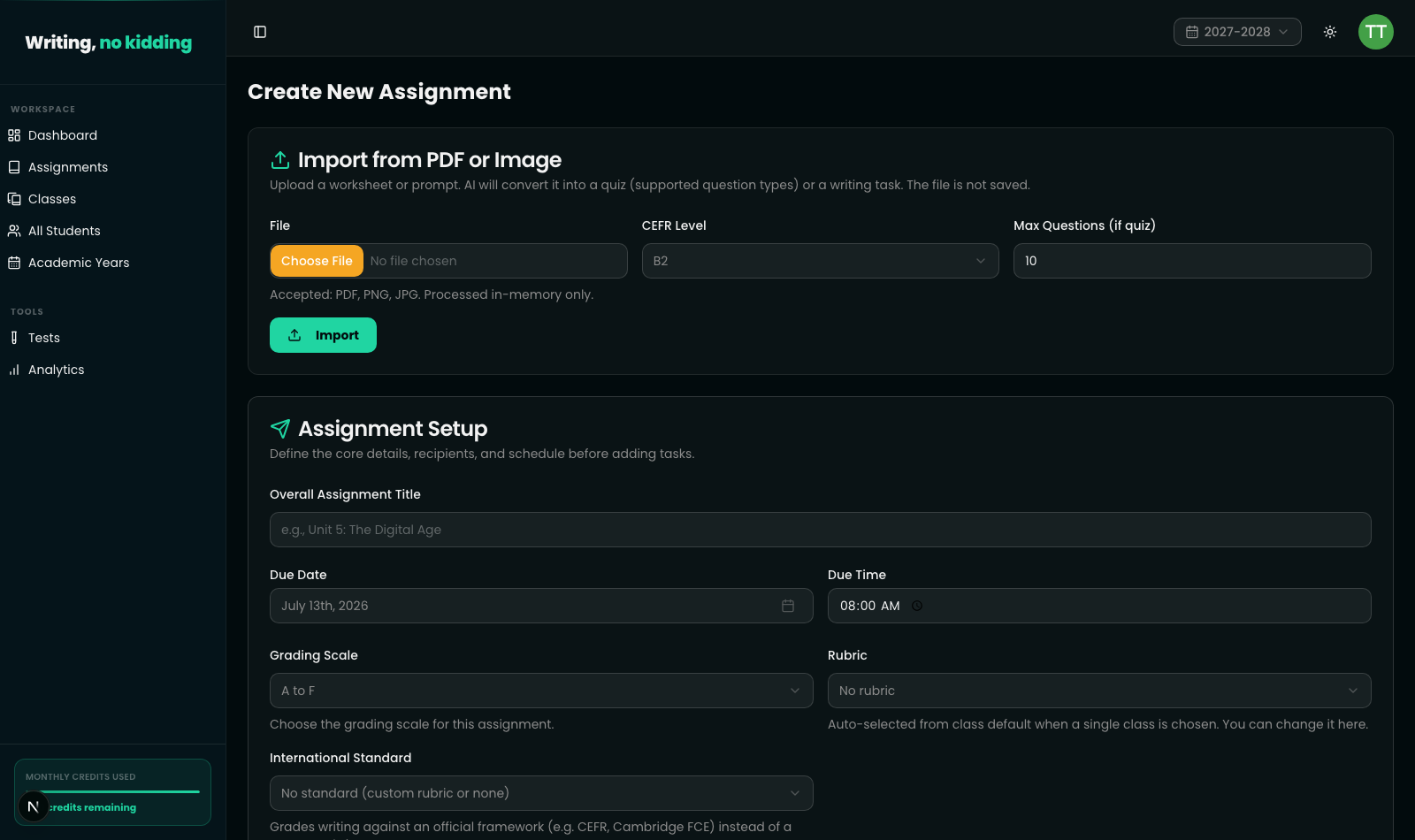
Go to Teacher → New Assignment (or use the New Assignment quick action on your dashboard). If you've saved templates before, you'll see a Load from Template dropdown at the top of the page, plus Browse Templates and Browse Test Bank buttons — useful if you're reusing a previous setup rather than starting cold. There's also an Import from PDF or Image panel that can turn an existing worksheet into a quiz or writing task automatically. This guide assumes you're building from scratch.
Steps
- Open New Assignment. Navigate to the New Assignment page from the sidebar or the dashboard's Quick Actions panel.
- Set the Overall Assignment Title. This is the name students and you will see everywhere the assignment is listed (e.g. "Unit 5: The Digital Age").
- Set the Due Date and Due Time. Pick a due date from the calendar and a due time — submissions after this point are late unless you allow late submissions.
- Choose a Grading Scale. Options are 0 to 100, 0 to 10, A to F, or "No grading (feedback only)" if you just want AI comments without a score.
- Pick a Rubric or an International Standard (optional). Use the Rubric dropdown to select a saved rubric, or the International Standard dropdown to grade against a framework like CEFR or Cambridge FCE instead. Choosing one clears the other — a task is graded against a custom rubric or a standard, not both. You can also leave both on "None" and assign without either.
- Assign to Classes and/or Individual Students. Check one or more classes in the Assign to Classes list, and/or search and check specific students under Assign to Individual Students. At least one class or student is required before you can submit the form.
- Set the toggles that fit your assignment. Shuffle order randomizes task/question order per student, Autopilot correction turns on quiz-only AI auto-review, and Allow late submissions controls whether work after the due date/time is still accepted.
- Add at least one task. Use the task-type buttons — Writing Task, Quiz Task, Gapped Text, Matching Task, Transformation Task, or Reading Comprehension — to add one or more tasks to the assignment. Each task type opens its own editor (with AI-generation helpers) where you set the CEFR level and content. If you add more than one task, their score weights must add up to 100%.
- Assign or save. Click Assign to [N] student(s) to send it out immediately, or use Save as Template / Save as Test if you want to reuse this setup later without assigning it yet.
What the setup section looks like
Notes on task types
Every task type button adds a differently colored task card to the bottom of the form: writing tasks (jade), quiz tasks (purple), gapped text (cyan), matching (amber), transformation (rose), and reading comprehension (sky). You can add multiple tasks of different types to the same assignment — for example, a writing task plus a quiz — and the platform automatically rebalances their score weights evenly unless you adjust them. Most task types include an AI-generation panel so you can generate a prompt, quiz questions, or exercise content from a topic or an uploaded file instead of writing everything by hand.
Next steps
Once you're comfortable with the basic flow, two things will save you time going forward:
- How to Build a Writing Rubric — so AI grading follows criteria you define instead of a generic standard.
- How to Use Assignment Templates — so you don't have to rebuild this setup from scratch every time.
Ready to try this in your own classroom?
Related articles
How to Build a Writing Rubric
Build a weighted, CEFR-aligned writing rubric from scratch so AI grading and your own review use the same criteria.
How to Use Assignment Templates
Save any assignment setup as a reusable template so you don't have to rebuild rubrics and prompts every semester.
How to Use Grading Standards: CEFR and Cambridge
Grade against CEFR (A1-C2) or Cambridge B2 First Writing band descriptors instead of a generic scale, so AI feedback matches a real standard.