How to Use Assignment Templates
Last updated: 2026-07-06
Rebuilding the same writing prompt, quiz, or rubric setup every semester wastes time you don't have. The assignment template tool for teachers in Writing, no kidding lets you save any assignment's title, tasks, and grading scale as a reusable template, then start a brand-new assignment from it in a couple of clicks instead of recreating it from scratch.
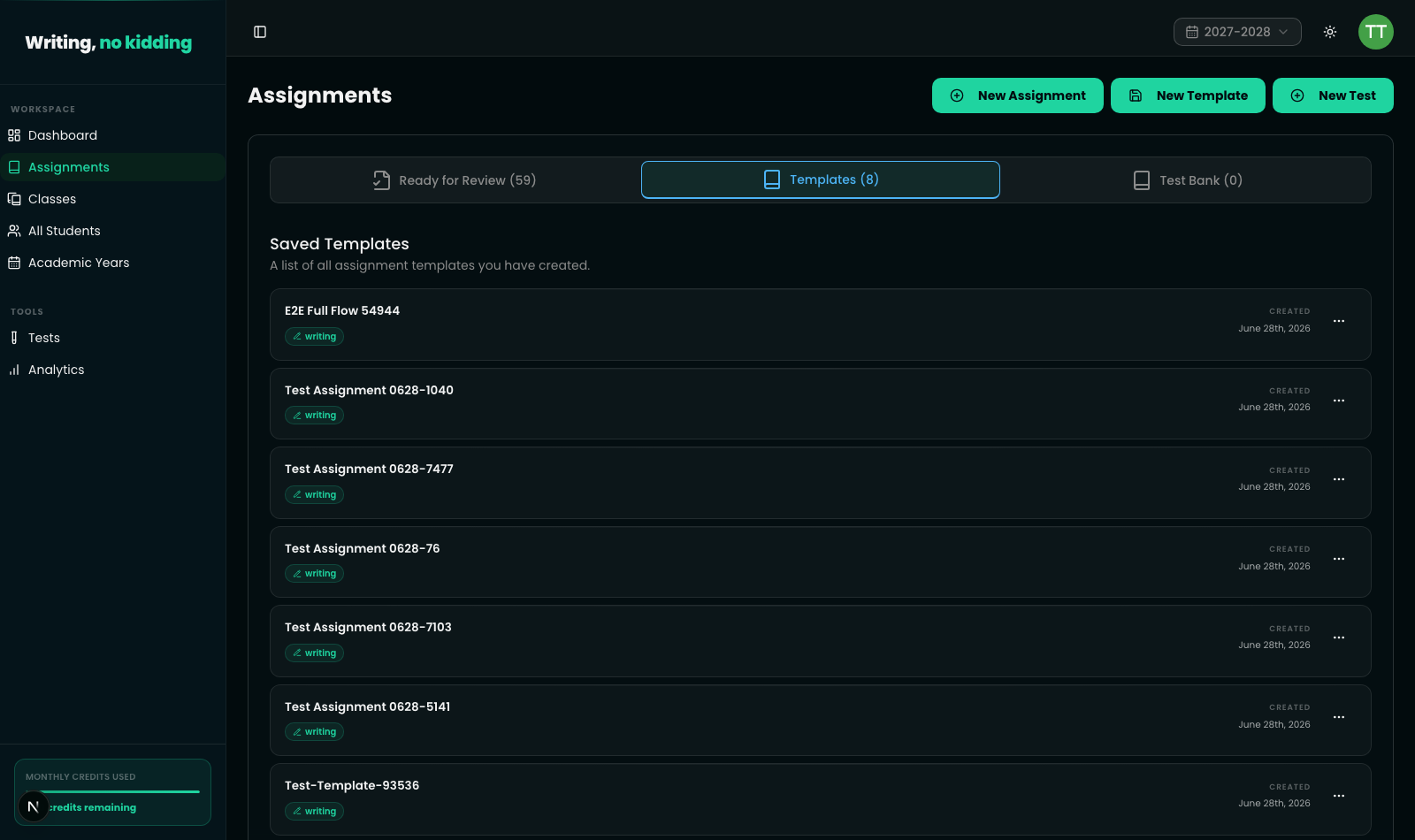
Templates live alongside your regular assignments in the Assignments section, under a dedicated Templates tab (there's also a separate Test Bank tab for templates saved in test mode). This article covers both directions: saving a template, and starting a new assignment from one.
Saving an assignment as a reusable template
You don't create templates on a separate page — the "New Template" entry point actually redirects straight into the same New Assignment form, because that's where the Save as Template control lives. Build out an assignment's title, tasks, and grading scale the way you normally would, then instead of (or in addition to) assigning it, save it for reuse.
Only the title, tasks, and grading scale are saved as reusable lesson templates — due dates, class/student recipients, and toggles like shuffle order are not part of the template, since those change every time you reuse it.
There's also a Save as Test button next to it, which saves the same data but flags it as a test-mode template — those show up in the Test Bank tab instead of Templates, for teachers who run locked-down test sessions.
Starting a new assignment from a saved template
Once you have at least one saved template, the New Assignment page shows a Load from Template dropdown at the top, plus Browse Templates and Browse Test Bank buttons that jump to the full lists on the Assignments page.
Picking a template from the dropdown reloads the New Assignment page with that template's title, tasks, and grading scale pre-filled — you then just need to set a due date, due time, and recipients (classes or students) before assigning, since those aren't stored on the template.
Steps
- Build an assignment on the New Assignment page: set a title, add one or more tasks (writing, quiz, gapped text, matching, transformation, or reading comprehension), and choose a grading scale.
- Click "Save as Template" in the form footer to save it as a reusable template, or "Save as Test" to save it into the Test Bank instead.
- Confirm the save. A toast confirms the template was saved; it now appears under Assignments → Templates (or Test Bank).
- Start a new assignment from the template. Go back to New Assignment and either use the Load from Template dropdown, or click Browse Templates / Browse Test Bank to pick one from the full list.
- Fill in what the template doesn't include. Set the due date, due time, and assign to classes or students — the template pre-fills everything else.
- Assign as usual. Click Assign to [N] student(s) to send it out, or save it again as a new template if you've tweaked it into a different reusable version.
What the Templates tab looks like
Next steps
Ready to try this in your own classroom?
Related articles
How to Create Your First Writing Assignment
Step-by-step guide to creating an ESL writing assignment: set the CEFR level, due date, rubric, and assign it to your classes.
How to Build a Writing Rubric
Build a weighted, CEFR-aligned writing rubric from scratch so AI grading and your own review use the same criteria.
How to Organize Classes and Academic Years
Set up classes, roll students into new academic years, and keep past years archived without losing historical data.