How to Import a Rubric from a PDF
Last updated: 2026-07-06
If you already grade with a rubric on paper, in a Word doc, or as a scanned PDF, you don't need to rebuild it field by field. Writing, no kidding lets you import a rubric from PDF (or an image) directly on the New Rubric page, and AI reads it and structures it into criteria, weights, and levels automatically.
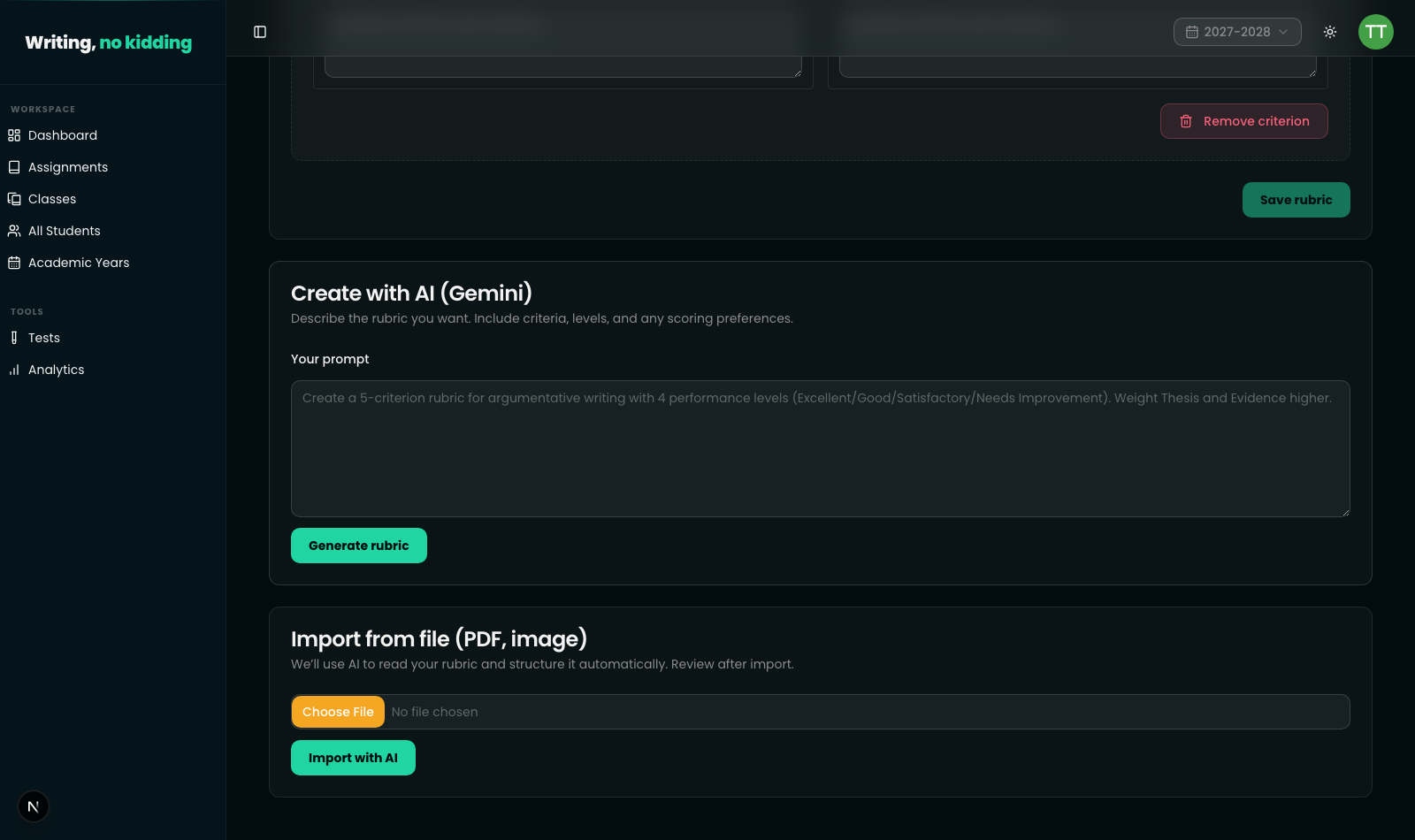
Where to find it
On Teacher → Rubrics → New rubric, scroll past the guided builder and the "Create with AI (Gemini)" prompt card to the "Import from file (PDF, image)" card. This is the tool to convert PDF rubric content into a digital, editable rubric without retyping every criterion and descriptor by hand.
Choose a file — PDF or image formats are accepted — and click "Import with AI." The AI rubric import tool reads the document's structure (criteria, performance levels, points, descriptors) and converts it into the same rubric format used by the guided builder.
What happens after import
You are not dropped straight into a finished, locked rubric. After a successful import, you land on the rubric's edit screen, where the AI's interpretation of your document is laid out as normal editable criteria and levels — the same fields you'd fill in manually: criterion titles, weights, level labels, points, and descriptors. This matters because AI reading of a scanned or loosely formatted document won't always be perfect on the first pass. Check that:
- Every criterion from your original document was captured, and none were merged or split incorrectly.
- Weights match what you actually intend them to be.
- Level labels and point values line up with your original scale.
- Descriptors weren't truncated or misattributed to the wrong level.
Only after you've reviewed and, if needed, corrected these fields does the rubric become usable for grading assignments.
Steps
- Go to Teacher → Rubrics → New rubric.
- Scroll to the "Import from file (PDF, image)" card.
- Choose a PDF or image file containing your existing rubric.
- Click "Import with AI."
- Review the auto-structured rubric on the edit screen — check criteria, weights, levels, and descriptors.
- Make any corrections needed, then save the rubric.
Why review matters
This import tool follows the same principle used throughout the app's AI features: AI output is a draft, not a final answer. The rubric isn't quietly trusted and applied to student work — you see exactly what the AI extracted, on the same editable screen as a manually built rubric, before it's ever used to grade a submission.
Related
If you'd rather build a rubric from scratch instead of importing one, see How to Build a Writing Rubric. The same AI-import pattern also works for whole assignments — see How to Import an Assignment from a PDF or Image.
Ready to try this in your own classroom?
Related articles
How to Build a Writing Rubric
Build a weighted, CEFR-aligned writing rubric from scratch so AI grading and your own review use the same criteria.
How to Import an Assignment from a PDF or Image
Skip manual entry — upload a PDF or photo of an existing worksheet and let AI turn it into a ready-to-assign task.
How to Use Grading Standards: CEFR and Cambridge
Grade against CEFR (A1-C2) or Cambridge B2 First Writing band descriptors instead of a generic scale, so AI feedback matches a real standard.