How to Import an Assignment from a PDF or Image
Last updated: 2026-07-06
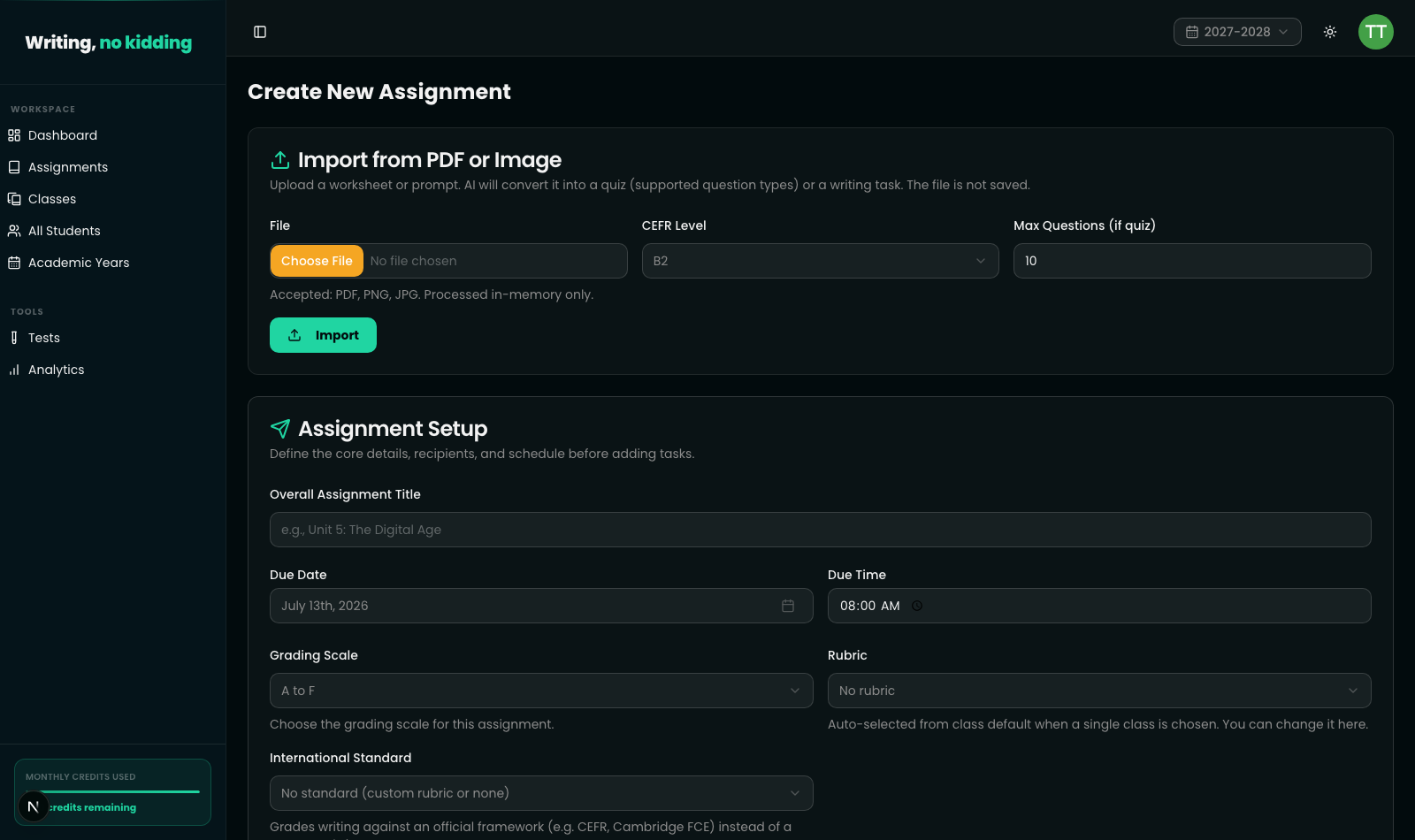
The fastest way to digitize a worksheet you already use in class is to import assignment from PDF with AI instead of retyping every question. The Import from PDF or Image card at the top of the New Assignment page does exactly this: upload a scanned or photographed worksheet and AI turns it into a ready-to-review quiz or writing task.
What it converts
Once you upload a file, AI parses the content and decides whether it looks like a quiz or a writing prompt:
- If it detects question-and-answer content, it returns a quiz task with the supported question types, pre-filled with the extracted questions.
- If it detects an essay prompt instead, it returns a writing task with the prompt text ready to use.
If the uploaded file already looks like an existing structured test, the AI parse assignment step preserves the original questions rather than rewriting them.
Privacy: nothing is saved
This is the detail worth calling out for any teacher uploading real classroom materials: the card's own description says "the file is not saved," and the file-input helper text confirms it further — "Accepted: PDF, PNG, JPG. Processed in-memory only." The upload is sent to the AI for one-time conversion and is not stored anywhere in Writing, no kidding.
Settings you control
Before importing, you set:
- File — accepts PDF, PNG, or JPG.
- CEFR Level — the level the AI should target when interpreting or leveling the content (A1-C2).
- Max Questions (if quiz) — a cap on how many questions to extract, from 1 to 30.
After you click Import, the converted quiz or writing task is appended directly to the assignment you're building — it doesn't create a separate template or test on its own. You still set the assignment title, due date, grading scale, and recipients the normal way, and you can add more tasks (Writing, Quiz, Matching, Transformation, Gapped Text, Reading Comprehension) alongside the imported one before assigning it.
Steps
- Open New Assignment from the teacher dashboard.
- In the Import from PDF or Image card, choose a file — a PDF, PNG, or JPG of your worksheet or prompt.
- Set the CEFR Level for the imported content.
- If the file looks like a quiz, set Max Questions to cap how many items are extracted.
- Click Import and wait for the AI to convert the file into a quiz or writing task.
- Review the imported quiz questions or writing prompt in the task list below — edit anything the AI got wrong before assigning.
Related articles
Ready to try this in your own classroom?
Related articles
How to Import a Rubric from a PDF
Already have a rubric as a PDF? Import it directly instead of rebuilding your criteria and bands by hand.
How to Create Your First Writing Assignment
Step-by-step guide to creating an ESL writing assignment: set the CEFR level, due date, rubric, and assign it to your classes.
How to Use Assignment Templates
Save any assignment setup as a reusable template so you don't have to rebuild rubrics and prompts every semester.