How to Lock Down Chromebooks for Testing
Last updated: 2026-07-06
Writing, no kidding's in-app test mode can enforce fullscreen, block copy/paste, and log tab switches — but a page running in a regular browser tab can't stop a student from opening a new window, switching apps, or using a second device beside them. To lock down Chromebooks for online tests at the device level, you configure the fleet itself through the Google Admin console — this is out-of-app setup, done by a school's IT admin, not something Writing, no kidding controls directly.
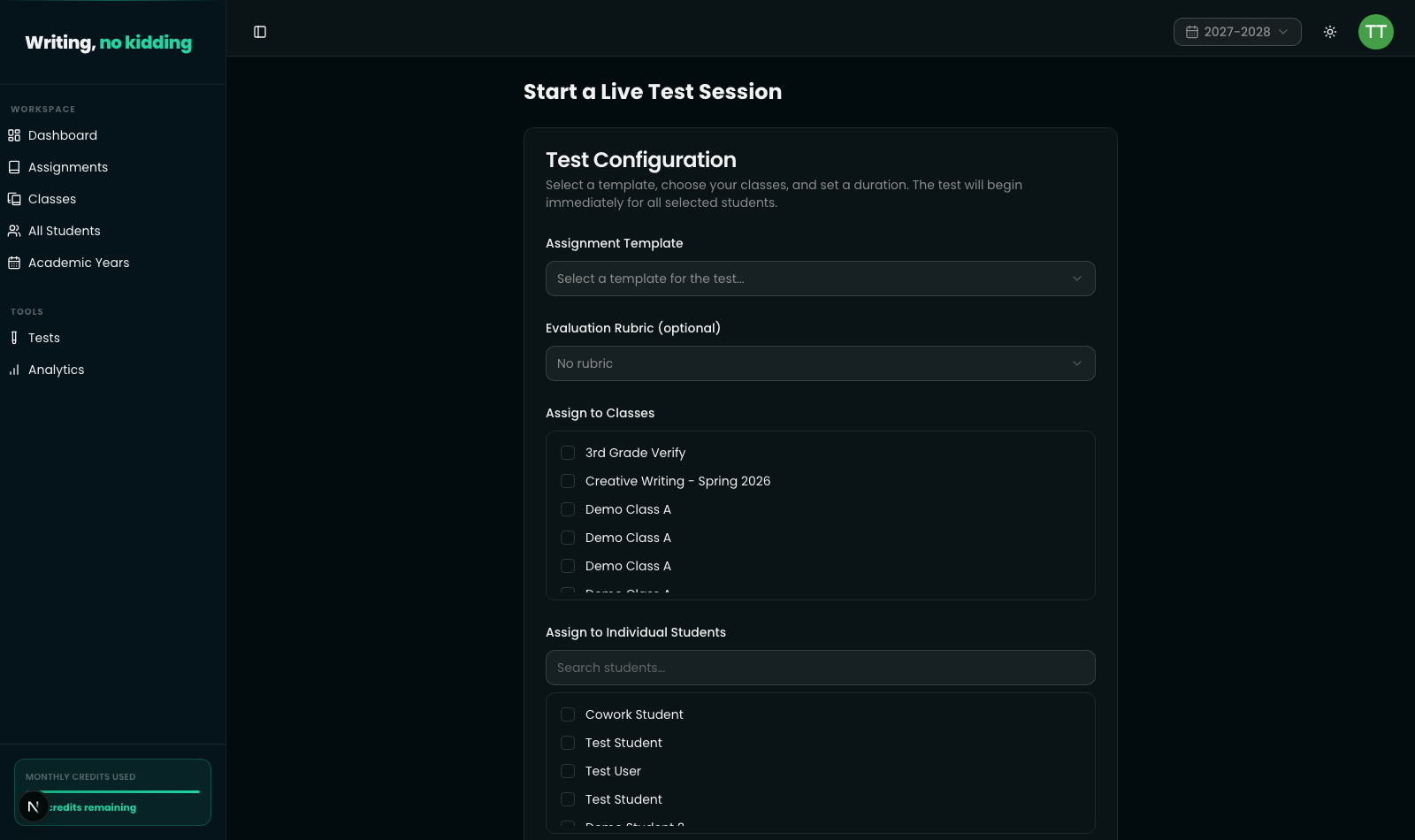
Two levels of Chromebook test lockdown
There are two supported ways to configure school-managed Chromebooks for testing, depending on how strict you need to be.
Option A — Single-app Kiosk mode (fully locked)
Best for dedicated testing devices that only need to run the test. In the Google Admin console, go to Devices → Chrome → Apps & extensions → Kiosks, select the org unit containing the testing Chromebooks, and add the Writing, no kidding URL as a web app kiosk (or package it as a PWA/kiosk app) set to auto-launch. Once configured, the device boots straight into the app with no other UI, and students can't leave it until staff reboot the device. This is the option to reach for on high-stakes or certification exams.
Option B — Managed guest session / restricted profile (semi-locked)
Best for shared classroom Chromebooks that are also used for other schoolwork. In the Admin console, go to Devices → Chrome → Settings → Managed guest session, then restrict allowed URLs to the Writing, no kidding domain, block incognito mode, block the task manager, and disable the ability to install extensions. You can also force fullscreen and disable the "new window" keyboard shortcut through device policy. This is usually sufficient for routine class tests, especially combined with the app's own proctoring telemetry to flag anomalies after the fact.
Preventing cheating on online tests: what to expect from each layer
Device-level lockdown and in-app test mode are meant to work together, not replace each other. Kiosk mode or a managed guest session stops a student from leaving the test tab, opening another app, or reaching browser settings — things a web page has no power over. The app's own fullscreen gate, input blocking, and tab-switch telemetry (covered in How to Run a Locked-Down Test Session) then handle everything that happens inside the page itself. Neither layer alone covers every case — a student can still use a phone next to a fully kiosked Chromebook — which is why the built-in integrity metrics exist as a second line of review rather than a guarantee.
One platform note worth knowing: the in-app enforcement works across desktop, Chromebook, iPad, and phone, but iPadOS/iOS Safari has no Fullscreen API, so on those devices the test runs in a focus-lock container with a persistent reminder instead of true hardware fullscreen. Device-level kiosk configuration, by contrast, is Chromebook/Chrome OS-specific.
Steps
- Decide which lockdown level you need: Option A (Kiosk mode) for high-stakes exams, or Option B (managed guest session) for routine class tests.
- For Kiosk mode: in the Google Admin console, go to Devices → Chrome → Apps & extensions → Kiosks.
- Select the org unit containing your testing Chromebooks and add the Writing, no kidding URL as a web app kiosk set to auto-launch.
- For a managed guest session instead: go to Devices → Chrome → Settings → Managed guest session.
- Restrict allowed URLs to the Writing, no kidding domain, and block incognito mode, the task manager, and extension installs.
- Optionally enforce fullscreen and disable the "new window" shortcut through device policy.
- Combine either option with the app's own test-session lockdown and review the integrity metrics afterward.
Related reading
- How to Run a Locked-Down Test Session — the in-app fullscreen, copy/paste blocking, and monitoring layer this device setup complements
- Getting Started with Writing, no kidding — an overview of the platform before diving into test administration
Ready to try this in your own classroom?
Related articles
How to Run a Locked-Down Test Session
Start a proctored test session with fullscreen enforcement, copy/paste blocking, and live integrity monitoring.
How to Create an ESL Quiz
Build multiple-choice, short-answer, and fill-in-the-blank quizzes with AI-assisted question generation.
Getting Started with Writing, no kidding
An overview of how Writing, no kidding works for ESL/EFL teachers — from creating your first assignment to reviewing AI-assisted grades.