Getting Started with Writing, no kidding
Last updated: 2026-07-06
Writing, no kidding is an AI grading platform for ESL teachers who need to assign, correct, and give feedback on student writing without spending every evening buried in essays. It combines an assignment builder, a rubric system, and Gemini-powered AI grading in one place, so the same platform that creates the assignment also does the first pass on marking it.
If you are new here, this article is your map. It covers what the platform actually does, how a typical week works once it's set up, and where to go next depending on what you're trying to do first.
What the platform does
At its core, this is ESL writing assessment software built around one loop: a teacher creates an assignment (a writing task, a quiz, a gapped-text exercise, or a mix of task types), students complete it, and AI pre-grades the submission against a rubric or an international standard like CEFR. The teacher then reviews the AI's suggested grade and feedback, adjusts anything that needs a human eye, and finalizes it. Nothing is graded and released without a teacher's sign-off — the AI produces a draft assessment, not a final one.
This matters if you're trying to teach writing with AI without losing the parts of grading that require judgment: tone, context, whether a student's unusual phrasing is a mistake or a stylistic choice. The AI handles the repetitive first pass — checking grammar, structure, vocabulary range, and rubric criteria — so your review time goes toward the decisions that actually need a teacher.
Your dashboard at a glance
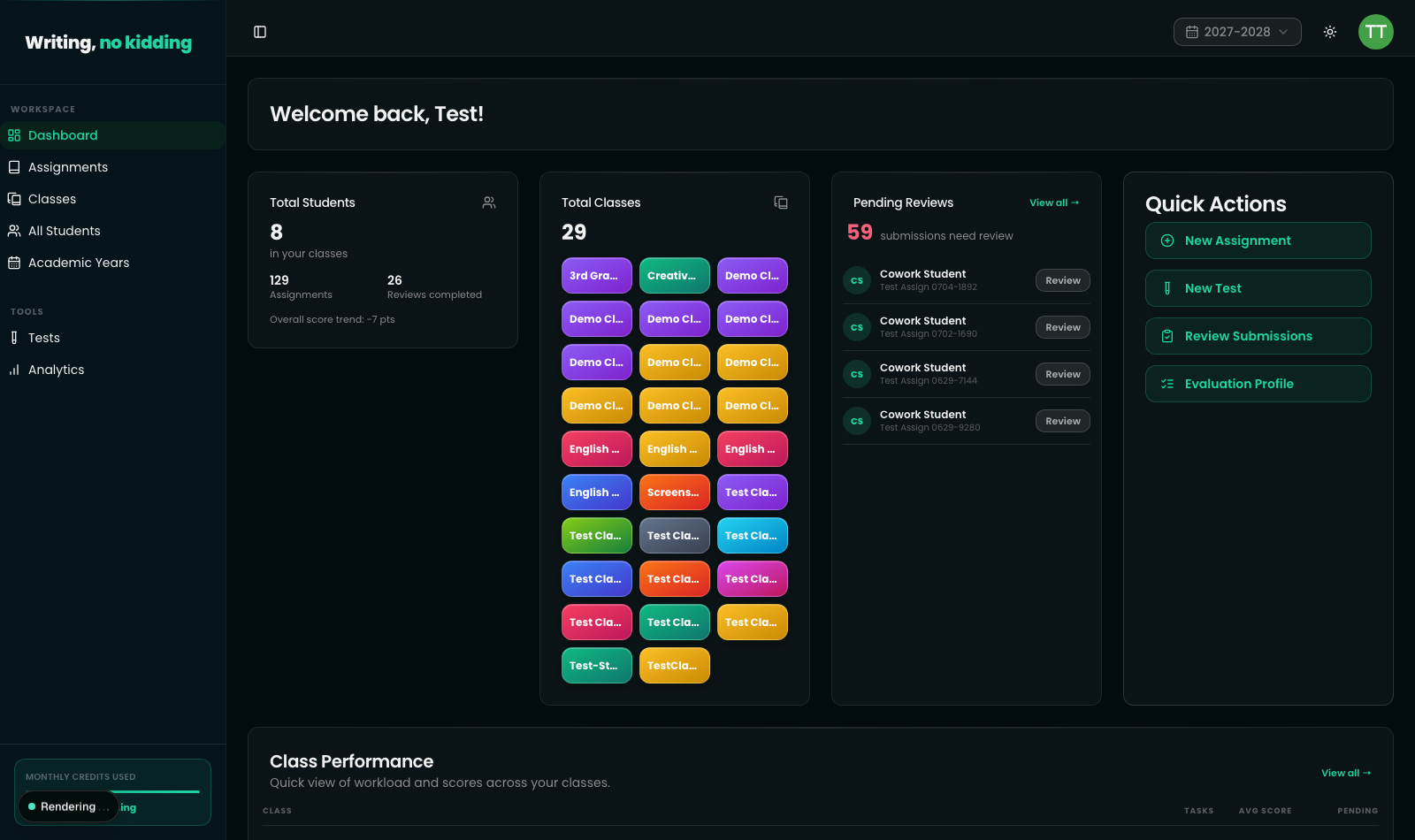
When you log in, the dashboard gives you a snapshot of where things stand:
- Total Students and Total Classes cards show your roster size and let you jump straight into class rosters.
- Pending Reviews lists submissions waiting for your feedback, with student name, assignment, and grade (if the AI has already scored it) so you can jump straight to a review.
- Quick Actions is your fastest way to start something new: New Assignment, New Test, Review Submissions, or Evaluation Profile (where you fine-tune how strict or lenient the AI grading feels for your classes).
- Badges like First Review, Lesson Launcher, and Classroom Captain track milestones as you use the platform — they're a lightweight way to see your own progress alongside your students'.
- Below the stat cards, a Class Performance table breaks down assignment counts, average scores, and pending reviews per class, and a calendar view lays out upcoming due dates.
The core workflow loop
- Create an assignment. Set a title, due date, and grading scale, then add one or more tasks (writing, quiz, gapped text, matching, transformation, or reading comprehension). Attach a rubric or an international standard if you want AI grading to follow specific criteria.
- Assign it to one or more classes, or to individual students.
- Students submit. Depending on settings, this can happen in a normal window or inside a locked-down test session.
- AI grades first. Once a submission comes in, the AI evaluates it against the rubric or standard you attached and produces a suggested grade with detailed feedback.
- You review and finalize. Everything AI-graded lands in Pending Reviews. You read the feedback, adjust the grade or comments if needed, and submit it back to the student.
Everything else in the platform — templates, rubrics, grading standards, class organization, Google Classroom sync, locked-down test sessions — exists to make one of those five steps faster or more precise.
Where to go next
Ready to try this in your own classroom?
Related articles
How to Create Your First Writing Assignment
Step-by-step guide to creating an ESL writing assignment: set the CEFR level, due date, rubric, and assign it to your classes.
How to Grade ESL Essays with AI
The end-to-end grading workflow: run AI analysis on a submission, review the proposed score, and finalize the grade.
How to Organize Classes and Academic Years
Set up classes, roll students into new academic years, and keep past years archived without losing historical data.